 Rock Cabinet
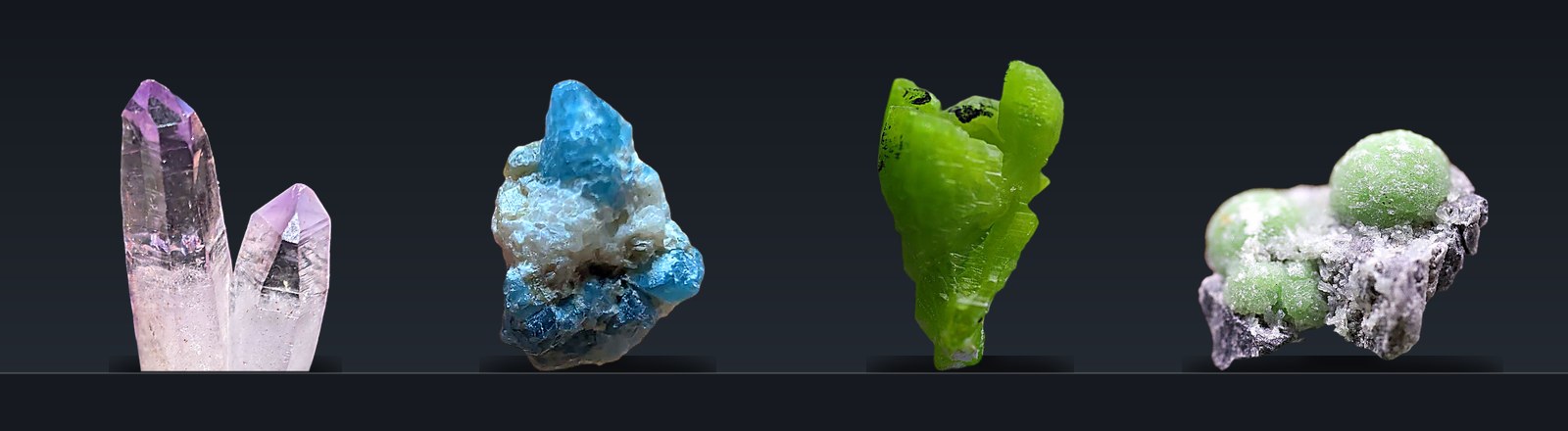
Everything a collector actually needs
A catalog, not an identifier. Rock Cabinet will not tell you what a specimen is. Identification is up to you, a club, a reference book or an expert. Once you know, it keeps your records tidy and your names spelled correctly.
No spreadsheet gymnastics. Add a specimen in seconds, find anything in seconds, and print or share it when you want to.
Built for your phone
Take photos with the camera or pick from your gallery. Up to 8 photos per specimen, plus a separate source photo for a receipt, dealer tag or collecting site.
Log finds in the field
Found something? Open Quick add, snap photos and give it a name. Your phone’s GPS position and the time are filled in for you, so you always know exactly where and when you collected it. Collected it yourself? One tick uses those coordinates as the Origin, so it lands on the map as an exact pin. No signal? The find is saved on your phone and sent to your catalog when you are back online.
Photo improve
Every new photo is shown as the original, an improved version and a clean-background version. You pick which one is saved.
Fields you control
You start with a full set of ready-made fields. Rename, reorder, hide, delete or add your own: text, numbers, dates, check boxes and drop-down lists with your own options.
Fields that follow the Category
Pick a Category when you add a specimen and the form changes at once: a fossil asks for Formation and Fossil Type, a mineral asks for Hardness and Streak, and you are not scrolling past fields that do not apply. You decide which fields show for each Category, and fields you hide are never deleted.
Set up for what you collect
Tick rocks, gems, minerals, fossils, or any mix when you sign up, and you start with matching fields, categories and reference links. Collect something new later? Tick it in your control panel and the extra fields are added.
Search, sort and filter
Search everything at once or one field at a time. Sort by any column, filter by any field, and jump straight to a letter of the alphabet.
Name suggestions and spell check
Not an identifier: it helps with the name you enter. As you type a title you get suggestions and a spelling check that follow the Category you picked: rock names for rocks, gem and trade names for gems, and the official IMA mineral list for minerals. Nothing is ever blocked: type any name you like. Varieties are written the standard way, such as Quartz var. Amethyst. Each kind can be switched on or off.
Matrix and secondary minerals
For mineral collectors: record what a specimen sits on or alongside, such as uvite on magnesite, with the same spell check and searching.
One-tap reference links
Jump from any specimen to Mindat, Rockhoundr and Geology.com, plus Webmineral, Minerals.net, Handbook of Mineralogy and Mineralienatlas for minerals, including their matrix minerals, and Wikipedia and Wikispecies for fossils. You see the sites that suit the Category and what you collect.
Works with no signal
Out at a mine, a field or a show with no bars? Quick add still works, and Find searches your whole catalog from a copy kept on your phone, so you can check whether you already own a piece. Add Rock Cabinet to your home screen first (needed on iPhone).
Duplicate warning
Adding a specimen you already have? Rock Cabinet tells you, shows the matches, and marks it as a likely duplicate when the locality matches too. You can always add it anyway.
PDF catalog
Create a printable catalog or index of your collection, with the fields and photos you choose, and an optional QR code on each page that opens that specimen.
Where it came from, and where it is
Keep vendor, show, date, price, locality and mine, or the collecting site for your own finds. A GPS location opens in your maps app, so you can go back to the spot. A Storage Location field tells you which drawer or box it lives in.
Needs-review list
Quick-add a find in the field or at the show, flag it, and come back later to identify it. Nothing slips through.
QR labels for specimens, shelves and boxes
Print small QR labels for your specimens, or for the drawers, shelves and boxes they live in. It remembers which specimens already have a printed label, so the next sheet starts with the new ones. Scan one with your phone’s camera: a specimen label opens that specimen, and a shelf label lists everything kept there. The codes are tiny (they read on a phone at about 5 mm), print on standard label sheets or a label-roll printer, and only open for you once you are logged in.
Display cards and tent cards
Print a card for a shelf, a case or a show table: the name, the fields you choose, a photo and a QR code. Make flat cards, or tent cards that fold and stand up on their own. Pick the size (including inserts that fit Perky thumbnail boxes), print on card stock, and cut along the corner marks.
Reads the seller’s label
On Quick add, start with a photo of the dealer’s label. Rock Cabinet reads it on your phone and suggests the name, checked against its name lists, and where it is from. It only fills empty boxes, never overwrites what you typed, and you can undo it or switch it off. Printed labels work best; always check the suggestion before saving.
Import and export
Bring in your existing spreadsheet, or export everything to CSV at any time. Your data is yours.
Private by default
Your own login over a secure connection, and your email address is confirmed when you sign up. Add other logins for family if you like.
Share with a link
Want to show your collection or one special specimen? Turn on a read-only share link and send it to anyone. No login needed, and they cannot edit or download. On a phone, one tap opens your phone’s own share menu; on a computer there are buttons for Facebook, X, Reddit, Pinterest, WhatsApp, Bluesky and email. A shared specimen shows its photo in the link preview, marked with where it came from. Make a new link or turn it off any time and the old one stops working.
Wish list
Add the specimens you are hunting for. Add a photo and it is stamped with a WANTED banner, while the untouched original is kept for when you finally get it. See a piece you want in another collector’s shared collection? Look at it as a guest without logging out, and add it to your wanted list in one tap. Give your own collection a name and a short description, and they appear when you share it. Turn on Specimen of the day and a random specimen from your collection is shown each day, with a link you can post on other websites. Choose Public and Rock Cabinet may also feature it on the log-in page and share it on other websites and social media.
Easy account care
Forgot your password? Get an emailed reset link. Change your password or email yourself, with a confirmation so nobody else can.
Backups
Save and restore your data and photos from the control panel.
Themes
Choose from five looks, including Rock Cabinet (which follows your device’s light or dark setting), Classic, Warm paper, Header band and Dark. Each device remembers its own choice.
Scan labels in the app
Tap Scan (or press and hold the Home Screen icon on Android for a Scan shortcut), point the camera at a QR label, and the specimen (or the list for a shelf or box) opens. No need to switch to your phone’s camera app. You can also scan from a photo.
Live camera for photos
A camera screen inside the app with a guide frame, an optional coin or ruler spot for scale, and zoom and focus controls, a flashlight button, and several photos in a row that fill your photo slots one after another. Prefer your phone’s own camera? Switch it off.
Map and globe of your collection
Every specimen with an Origin becomes a pin on an interactive globe or a flat map. Filter by Category, search by name or place, tap a pin for its photo, and open the specimen. Or download a file and see the whole collection in Google Earth. Each specimen page also has Google Maps and Google Earth buttons. Pins show whether the place is exact or only approximate, and you can set any pin by hand.
Speak instead of typing
A small microphone button beside text boxes lets you say the name, notes or origin out loud. It uses your phone’s own voice typing (Chrome on Android, Safari on iPhone) and needs a signal.
Tap sound and vibration
Want a little feedback when you tap? Turn on a soft click sound or a short vibration, or both, from your control panel. Both are off or on per device, and you can test them before you decide. (Vibration works on most Android phones; iPhones do not allow it.)
Your own private collection
Every subscriber gets a completely separate catalog with their own fields, specimens and photos. Nothing is shared with anyone else.
How it works
From the collecting site or the table at the show to your searchable collection.
Snap, locate and save
Use Quick add on the spot, in the field or at the show: take photos and add a name. Your GPS location and the time are recorded automatically, and the find is flagged for review.
Fill in the details
At home, add the name, locality, Dana number (for minerals) and notes. For minerals, the spelling check catches typos before they stick and you can look the mineral up with one tap.
Find it any time
Search, filter and sort from your phone or computer, and print a catalog when you want a paper copy.
Simple plans
Start free today. Paid plans give you more room. Free accounts show a small RockCabinet.com mark over full-size photos. Annual plans have a 7-day refund on the first payment; after that, and for monthly plans, subscriptions are not refundable, so we recommend testing with the free account before you subscribe.
Starter
- Up to 25 specimens
- 3 photos per specimen
- Share link
- All the tools above except the PDF catalog
Collector
- Up to 500 specimens
- 5 photos per specimen
- Share link
- PDF catalog
Curator
- Unlimited specimens
- 8 photos per specimen
- Share link
- PDF catalog
Questions
Does it work on my phone?
Yes. It is designed for phones first. You can add it to your home screen and use the camera directly.
Can I use it out collecting?
Yes. Quick add records your GPS position and the time when your phone allows location access, and you can attach several photos on the spot. If you are out of signal, Quick add still works: the find, photos and GPS position are saved on your phone and sent to your catalog automatically when you are back online. Add Rock Cabinet to your home screen first, and open it once with a signal so the phone can save what it needs.
Can I search my collection with no signal?
Yes. Open Find and search by title, number, origin, matrix or where it is stored. It uses a copy of your catalog kept on your phone (without photos), updated whenever you open the app with a signal. Tap a result to see its details; the full record and photos need a signal.
Can I bring in my existing list?
Yes. Import a CSV file from a spreadsheet, and export your catalog back out whenever you like.
Who can see my collection?
Only people you give a login to. If you want to show your collection, turn on the read-only share link: anyone with it can look, but not edit or download, and you can switch it off at any time. Photos seen through a share link carry a small mark: “RockCabinet.com Free Account” on free accounts and “Hosted on RockCabinet.com” on paid ones. Your saved originals are never changed.
Does it identify my rocks, gems, or minerals from a photo?
No. Rock Cabinet is a cataloging tool, not an identification app. It never guesses what a specimen is. You enter the name, and it checks your spelling against the official mineral list and gives you one-tap links to reference sites so you can read more.
Is the mineral list official?
For minerals, the name suggestions come from the IMA-CNMNC list of approved mineral species, and we keep it up to date for you. Rocks, gems and fossils use our own lists (common rock names, gem and trade names, and fossil genera and well-known species). Those are suggestions only, so you can enter any name.
What if I reach my specimen limit?
You can still view and edit everything you have. To add more specimens, move up a plan.
Do I have to confirm my email?
Yes. After you sign up we email you a link; your catalog is created when you click it. The same address is used if you ever need to reset your password.
I forgot my password.
Use "Forgot your password?" on the login page and we will email you a link to choose a new one.
I collect rocks, gems or fossils, not minerals. Is it still for me?
Yes. When you sign up you choose rocks, gems, minerals, fossils, or any mix, and your catalog starts with the fields, categories and reference links that fit. Name suggestions follow what you collect: rock names for rocks, and gem and trade names for gems. They are only suggestions, so you can type any name freely.
How do I contact you?
Use the contact form. It is also in the footer of every page, once you are logged in too.
Can I cancel?
Yes, you can cancel at any time, and you can export all of your data first. You keep access until the end of the period you paid for. Because subscriptions are paid in advance, they are not refundable, except that an annual plan can be refunded in full within 7 days of the first payment. When a paid plan ends, your account moves to the free plan and your specimens are kept. A free account with no log-in for three months may be deleted, after we email you; paid accounts are not. We recommend trying the free account first to make sure Rock Cabinet suits you before you subscribe.
Ready to catalog your collection?
Create an account, confirm your email, and your first photos can be in today.
Create your accountAlready have one? Log in